


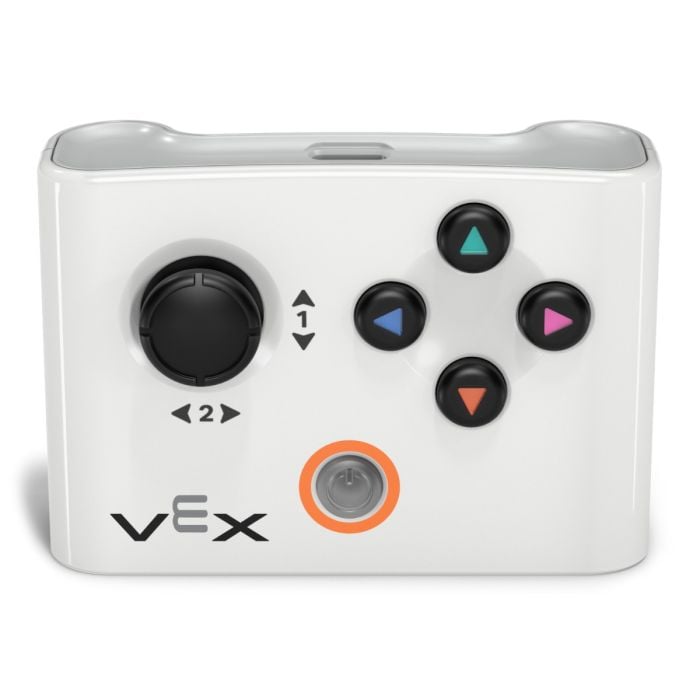
VEX One Stick Controller


Put direct, hands-on robot control in students’ hands with the VEX One Stick Controller. Featuring one joystick and five buttons, this rechargeable handheld controller works with both VEX AIM and VEX GO.
With VEX AIM, students can drive in any direction and control the robot’s kicker. With VEX GO, the controller currently provides drive control, with additional functionality actively being developed to expand the experience over time.
Classroom Use
- Hands-on robot driving and control
- Supports collaboration and driver practice
- Ideal as an additional or replacement controller
Features
- One joystick and five buttons
- USB-rechargeable internal battery
- Intuitive handheld controls
Compatibility
- Works with VEX AIM and VEX GO
- AIM driving and kicker control
- GO drive control
Functionality varies by platform. See compatibility details below.
Intuitive Robot Control
The VEX One Stick Controller provides a simple, approachable way for students to begin controlling a robot. Its streamlined joystick-and-button design supports hands-on driving while giving students the control needed to complete classroom activities and precision-driving challenges.Students can use the controller to practice coordination, collaborate on driving strategies, and compare driver-controlled movement with autonomous robot behaviors.
Controller Features
- Control interface: One joystick and five buttons
- Power: USB-rechargeable internal lithium battery
- Connection: Wireless connection to compatible VEX robots
- Compatible platforms: VEX AIM and VEX GO
- VEX AIM controls: Omnidirectional driving and kicker control
- VEX GO controls: Driving
- Coding integration: Controller-based movement can be incorporated into VEXcode AIM projects
Compatibility
VEX AIM
Use the One Stick Controller to take full advantage of AIM’s omnidirectional drive and interactive kicker.With VEX AIM, students can:
- Drive the robot in any direction
- Control the kicker
- Collect, move, and place barrels
- Catch and kick sports balls
- Incorporate controller-based movement into VEXcode AIM projects
- Apply driver-control skills in classroom activities and challenges
VEX GO
Use the One Stick Controller to add direct drive control to compatible VEX GO robots.
The controller currently supports driving with VEX GO. Additional GO controller functionality is actively being developed to expand the experience over time.
- (1) VEX One Stick Controller
- Course 1 - AIM Intro Course
- Unit 1 - Drive with a Controller
- Unit 2 - Touch to Code
- Unit 3 - Move Around Obstacles
- Unit 4 - Navigate Diagonal Paths
- Unit 5 - Transport Cargo
- Unit 6 - Finding and Transporting Cargo
- Unit 7 - Exploring AI Vision
- Unit 8 - Controlling Decisions
- Capstone - Delivery Dash
Explore setup, curriculum, coding, and teaching resources for VEX AIM and VEX GO. Controller functionality varies by platform; the One Stick Controller currently supports driving with VEX GO.
Controller Setup & Support
-
Charging and Powering on the One Stick Controller – Learn how to charge the controller using its USB-C port, check its charging status, and power it on or off
-
Connecting the One Stick Controller to VEX AIM – Step-by-step instructions for wirelessly linking the controller to a VEX AIM Coding Robot
-
Using Drive Mode on VEX AIM – Learn how to use the joystick and buttons to drive AIM, strafe, activate the kicker, and interact with detected objects
-
Calibrating the One Stick Controller – Instructions for calibrating the joystick if the robot is not moving or responding as expected
-
Resetting the One Stick Controller – Troubleshooting steps to safely reset an unresponsive controller
Getting Started
-
Get Started with VEX GO – Step-by-step guidance to help you set up and begin using VEX GO in your classroom
-
AIM Education Start Page – A central starting point for setting up, teaching, and learning with VEX AIM
-
GO Sales Brochure – Overview of the VEX GO system, including classroom use, curriculum, and components
-
AIM Sales Brochure – Overview of VEX AIM features, classroom applications, curriculum, and educator support
Curriculum & Teaching
-
VEX GO STEM Labs – Standards-aligned lesson plans, activities, and pacing resources designed for classroom instruction
-
VEX AIM STEM Labs – Hands-on courses, lessons, and activities covering robot driving, coding, problem-solving, and AI concepts
-
VEX Library – Educational articles, setup guidance, technical support, and teaching resources across VEX platforms
-
AIM VEX Library Resources – AIM-specific guidance for controller setup, robot operation, firmware, VEXcode, teaching, and troubleshooting
Software & Coding
-
VEXcode GO – Block-based coding platform used to program compatible VEX GO builds
-
VEXcode AIM Online – Browser-based access to VEXcode AIM with no software installation required
-
Download VEXcode AIM – Install VEXcode AIM on compatible Windows or Mac devices for block-based and Python coding
-
VEX AIM API Reference – Documentation for the Blocks and Python commands available when programming VEX AIM
-
VEX Visual Studio Code Extension – Advanced tools for programming VEX AIM in Microsoft Visual Studio Code
-
VEXcode AIM for iPad – Download VEXcode AIM from the App Store for coding and controlling AIM from a compatible iPad
Educator Support
-
VEX Certified Educators – Certification opportunities, professional recognition, and community connections for educators using VEX
-
Professional Development Plus – Training courses, instructional videos, professional learning, and community support for teaching with VEX GO and VEX AIM
-
VEX AIM Educator Certification Course – Free introductory certification course designed to help educators begin teaching with VEX AIM
Classroom Resources
-
VEX GO Build Instructions – Step-by-step instructions and examples for building VEX GO robots and models
-
Posters – Printable classroom materials that support robotics, coding, engineering, and STEM concepts
-
Rulers – Printable VEX measurement tools designed for classroom builds and activities
Extend Learning
-
VEX GO Robotics Competition Resources – Competition information and resources that help students apply their skills through collaborative, structured challenges
- 0.17 lbs (0.08 kgs)
-3.2V / 100mAh / 0.32Wh lithium-ion battery
Features
-
Internal rechargeable lithium-ion battery
-
Charged through a USB-C connector
-
Indicator light displays charging and power status
-
Battery level can be viewed from the Dashboard of a linked VEX AIM robot
Which VEX platforms work with the One Stick Controller?
The One Stick Controller works with both VEX AIM and VEX GO. Available controls vary by platform.
What can the One Stick Controller do with VEX AIM?
With VEX AIM, the controller can drive the robot in any direction and operate its kicker. Students can use it to maneuver around obstacles, move barrels, catch and kick sports balls, and complete hands-on driving challenges.
What can the One Stick Controller currently do with VEX GO?
The One Stick Controller currently provides drive control for VEX GO. Additional GO controller functionality is actively being developed to expand the experience over time.
Do I need to code the robot to use the controller?
No. VEX AIM’s built-in Drive Mode allows students to drive the robot and use its controller-enabled features without writing code.
For more advanced learning, controller-based movement can also be incorporated into VEXcode AIM projects to create customized driver-control experiences.
How do I connect the One Stick Controller to VEX AIM?
Power on the controller and the VEX AIM Coding Robot. On the robot’s screen, open Settings and select Link Controller. Press the controller’s power button twice quickly to begin connecting.
Once connected, the robot will play a sound and the controller’s indicator light will flash green.
How do I charge the One Stick Controller?
Connect a USB-C cable to the charging port on the front of the controller, then connect the cable to a computer or compatible power source. The indicator light in the power button will illuminate while the controller is charging.
The controller has an internal rechargeable lithium-ion battery. When connected to VEX AIM, its battery level can be viewed from the robot’s Dashboard.
Can I purchase the controller as a replacement or classroom spare?
Yes. The One Stick Controller is available separately, making it easy to replace an existing controller or keep an additional controller available for classroom use. The controller must be linked to a compatible robot before use.